Exporting
Set Frames, Frame skip, FPS, and Columns in the Volumetric Export tab, or their Fluid equivalents. Frame skip advances the simulation between captured frames; FPS is recorded for playback and does not change the simulation.
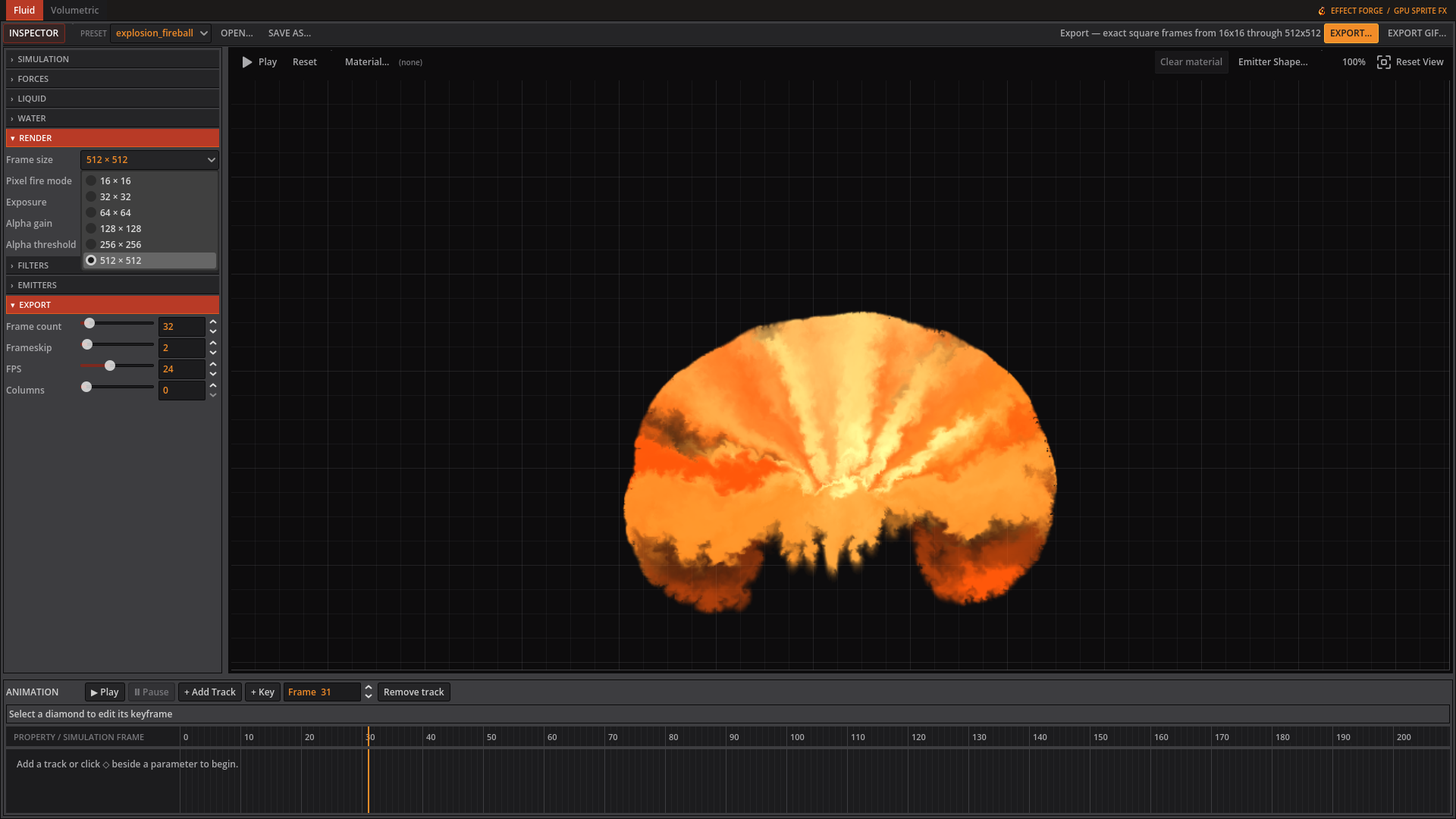 Choose a fixed square frame size before exporting a Fluid spritesheet.
Choose an output
| Output | Use it for |
|---|---|
| EXPORT… | A PNG spritesheet of fixed size RGBA frames, with a sidecar JSON file. |
| EXPORT GIF… | An optimized animated GIF. |
| EXPORT VOLUME… | The simulated 3D volume as one tiled Z-slice atlas, in EXR or 8-bit PNG. EXR keeps the temperature range. |
| EXPORT ATLAS SEQUENCE… | One numbered atlas per configured export frame. |
| EXPORT VDB… | The current simulated volume as one OpenVDB file with density and flames grids. |
| EXPORT VDB SEQUENCE… | One numbered OpenVDB file per configured export frame. |
For an atlas, STYLED ATLAS bakes the preview’s extinction, alpha cutoff and flame normalization into temperature and smoke. Turn it off for raw simulation fields. STYLED VDB does the corresponding bake into density and flames; off preserves raw simulation values. The two styled switches are on by default in the toolbar.
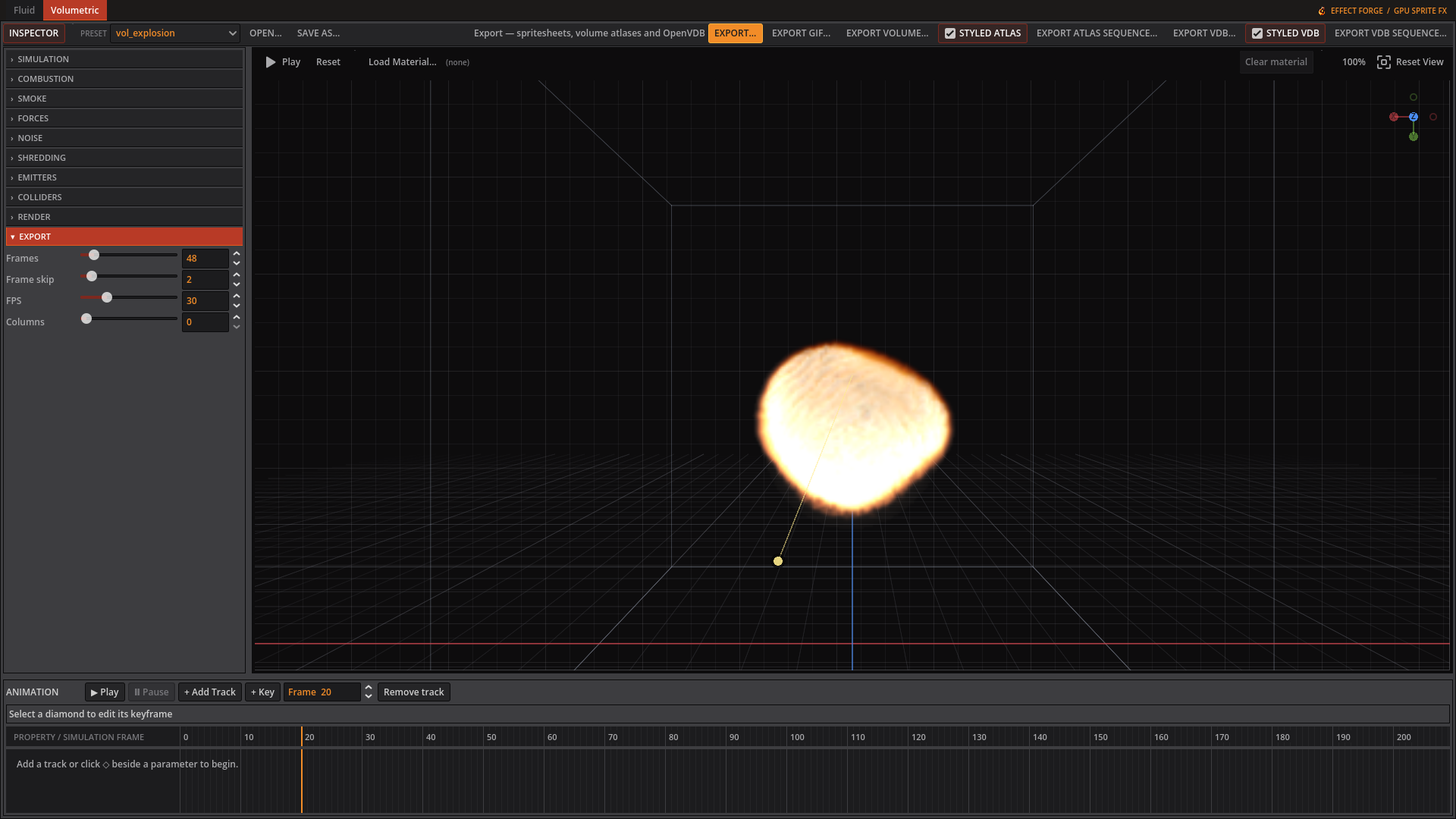 The Export tab sets capture timing and layout; the toolbar offers the available output formats.
Toolbar reference
The following button text and available tooltips come from the workspace toolbar. A dash means no tooltip is set there.
| Control | Tooltip |
|---|---|
| INSPECTOR | Show or hide the parameter inspector |
| TIMELINE | Show or hide the effect timeline |
| OPEN… | Load a custom EffectForge JSON preset |
| SAVE AS… | — |
| EXPORT… | — |
| EXPORT GIF… | Export animation frames as an optimized GIF |
| EXPORT VOLUME… | Write the simulated volume as a tiled slice atlas a 3D engine can load as a 3D texture |
| STYLED ATLAS | Bake the preview’s extinction, alpha cutoff, and flame normalization into atlas temperature and smoke. Disable for raw simulation fields. |
| EXPORT ATLAS SEQUENCE… | Write one numbered slice atlas per configured export frame |
| EXPORT VDB… | Write the current simulated smoke density as an OpenVDB FloatGrid |
| STYLED VDB | Bake the preview’s extinction, alpha cutoff, and flame normalization into VDB density and flames. Disable for raw simulation fields. |
| EXPORT VDB SEQUENCE… | Write one numbered OpenVDB file per configured export frame |
Reporting GPU problems
The app logs GPU adapter information and diagnostics to user://logs/effect-forge.log, unless a different log file is requested. A typical Linux path is ~/.local/share/effect-forge/logs/effect-forge.log; on Windows, look under %APPDATA%\effect-forge\logs\effect-forge.log. The startup GPU line also prints the actual log path for that machine.
Older logs and window-layout settings are not migrated automatically. Linux follows XDG_DATA_HOME when set.
Include that log when reporting a GPU problem. A NONFINITE line means a simulation texture contains NaN or infinity values; the app then turns on detailed tracing for the rest of the session. A SLOW line means a GPU submission took more than 500 ms, close enough to the Windows driver reset threshold to warrant investigation.
For more detail from the start, launch the source app with ./scripts/run.sh -- --gpu-debug. This logs individual dispatches and checks bound textures after each one, so it runs slowly. The same mode can be enabled with EFFECT_FORGE_GPU_DEBUG=1.
Godot’s own engine option --gpu-validation enables Vulkan validation layers. It requires the Vulkan SDK on Windows or vulkan-validation-layers on Linux; launch the source app with ./scripts/run.sh --gpu-validation, the Windows export with effect-forge.exe --gpu-validation, or the Linux export with ./effect-forge.x86_64 --gpu-validation when you need engine-level diagnostics.
GIF encoder requirement
GIF export needs ImageMagick’s magick command. Native Windows GIF export is not yet verified. Under Proton, the Windows app may fail to start the encoder; use PNG spritesheets if GIF export fails.