Getting started
Run the app
From a source checkout on Linux, run ./scripts/run.sh. The export presets define a Linux x86-64 build (effect-forge.x86_64) and a Windows x86-64 build (effect-forge.exe). If you have a packaged Linux download, its README.txt says to run ./install.sh once, then launch Effect Forge from the desktop application menu.
Find your way around
The toolbar selects presets, opens and saves custom JSON presets, and starts exports. Toggle INSPECTOR to show parameter controls and TIMELINE to show animation tracks. The preview displays the current frame, with Play/Pause, Reset and Reset View. The timeline lets you add tracks and keys, select diamonds, and edit a selected key’s frame, value and interpolation.
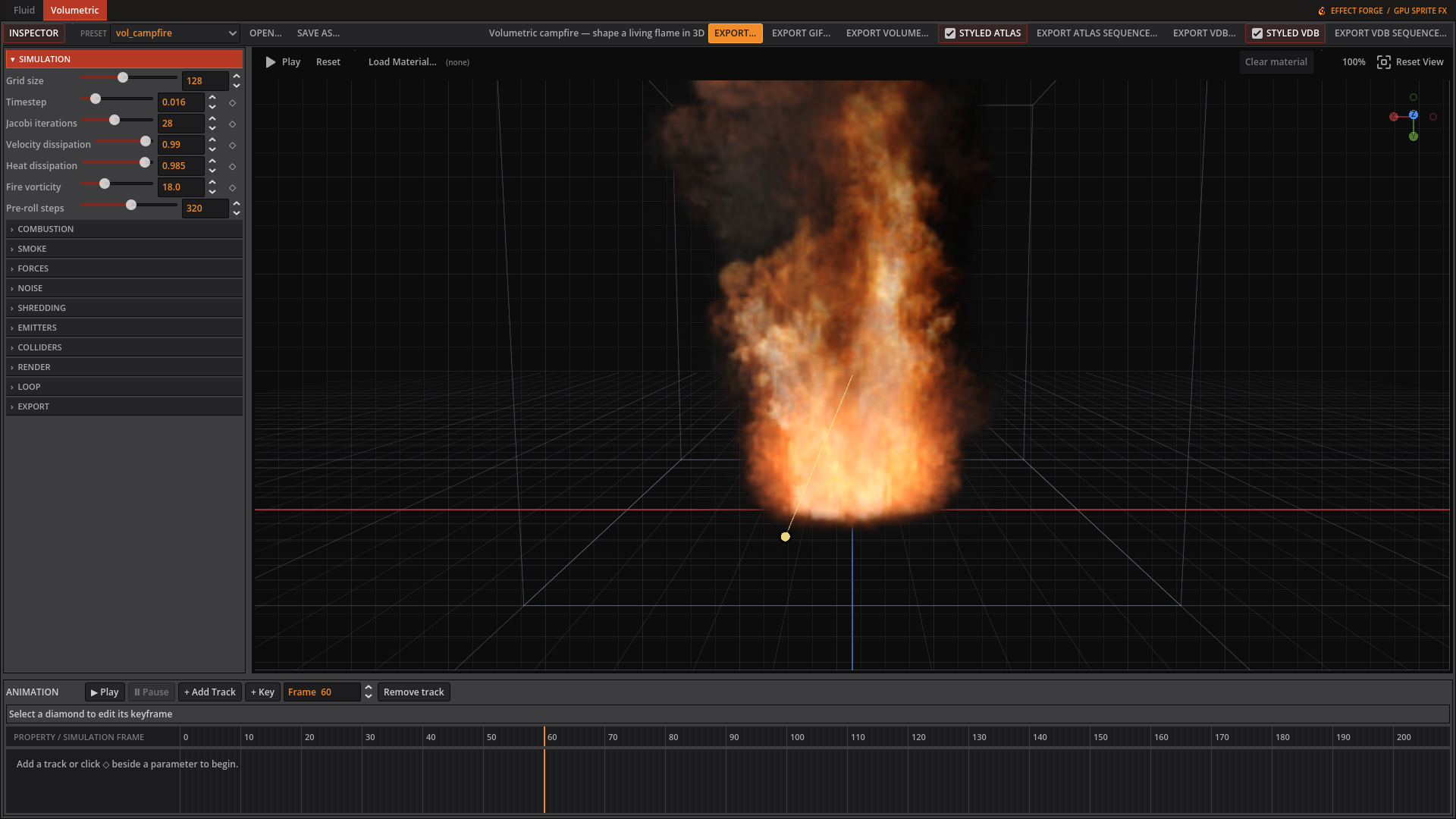 The toolbar runs across the top, the inspector sits beside the campfire preview, and the timeline runs along the bottom.
Choose a bundled preset from PRESET, or use OPEN… for a custom JSON file. Use SAVE AS… to keep your edited preset.
In the preview, click Play/Pause to stop or resume and Reset to restart the effect. Scroll the wheel to zoom a 2D view; middle drag pans it. In Volumetric, left drag orbits the camera and the wheel moves the camera closer or farther. Reset View restores the view.
Keyboard shortcuts
| Shortcut | Action |
|---|---|
| Ctrl+Z | Undo in Fluid or Volumetric |
| Ctrl+Y | Redo in Fluid or Volumetric |
| Ctrl+Shift+Z | Redo in Fluid or Volumetric |
| Delete or Backspace (timeline focus) | Delete the selected key |
Undo and redo apply to the active Fluid or Volumetric workspace. For a timeline track, + Add Track opens the parameter picker; + Key records its current value at the playhead.